Text-to-image and image editing in one model page
Use GPT Image 2 from a blank prompt or upload a source image when the subject, product, pose, or composition should stay anchored.
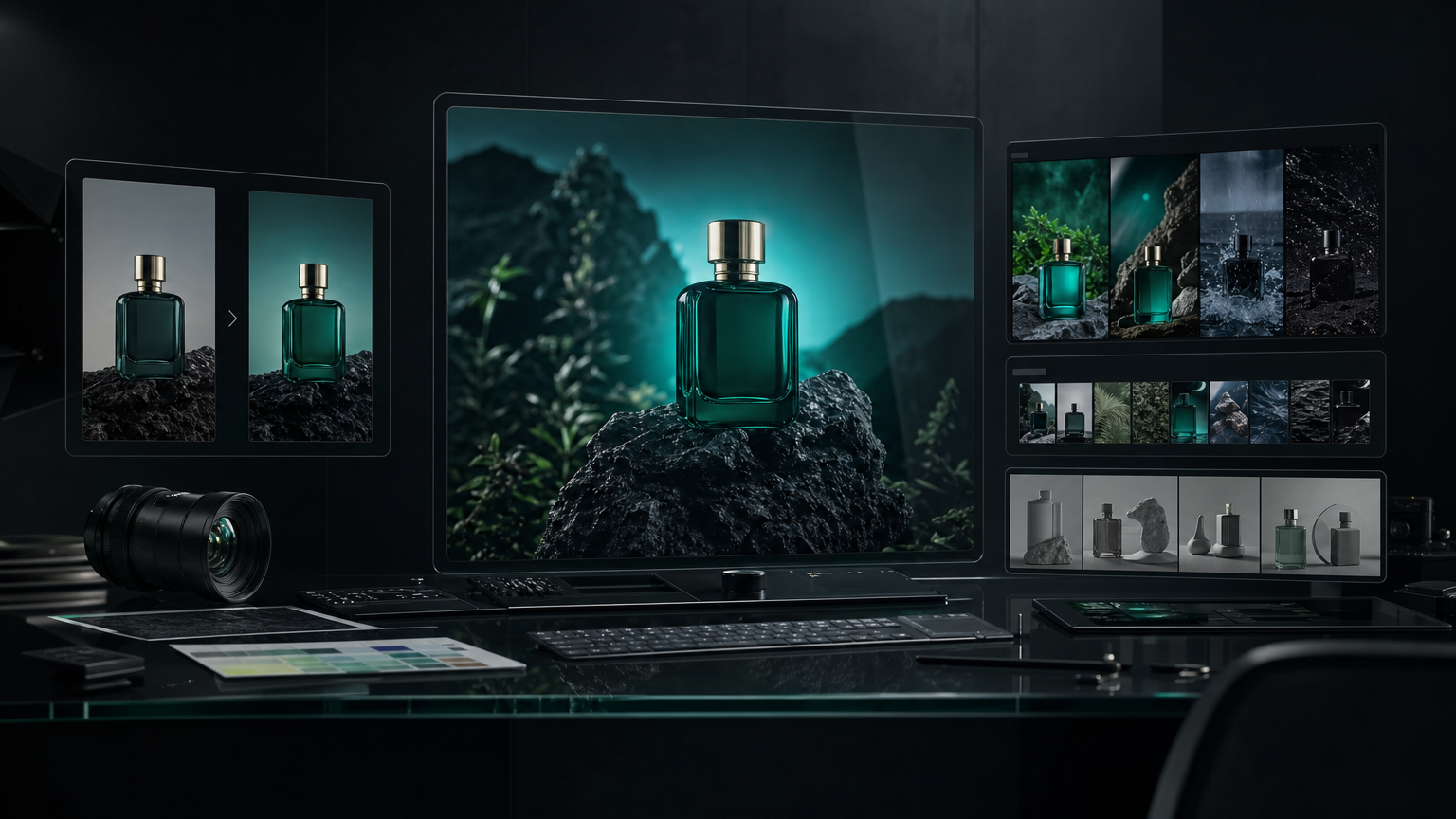
Create polished product shots, campaign stills, thumbnails, visual concepts, and reference-aware edits with OpenAI GPT Image 2 inside the Vevaro studio.
Why creators use GPT Image 2
GPT Image 2 is a strong default image model when the prompt needs to carry real creative direction. It is useful for product visuals, ad concepts, thumbnails, campaign stills, concept art, source frames for video, and practical image edits.
On Vevaro, GPT Image 2 lives inside the same studio as the rest of your image workflow. You can start from text, upload a source image for editing, choose quality and output format, keep generations in sessions, and continue refining without rebuilding the setup.
The best way to use it is simple: draft quickly, compare a few directions, then move the winning frame into an edit pass or a higher-quality generation.
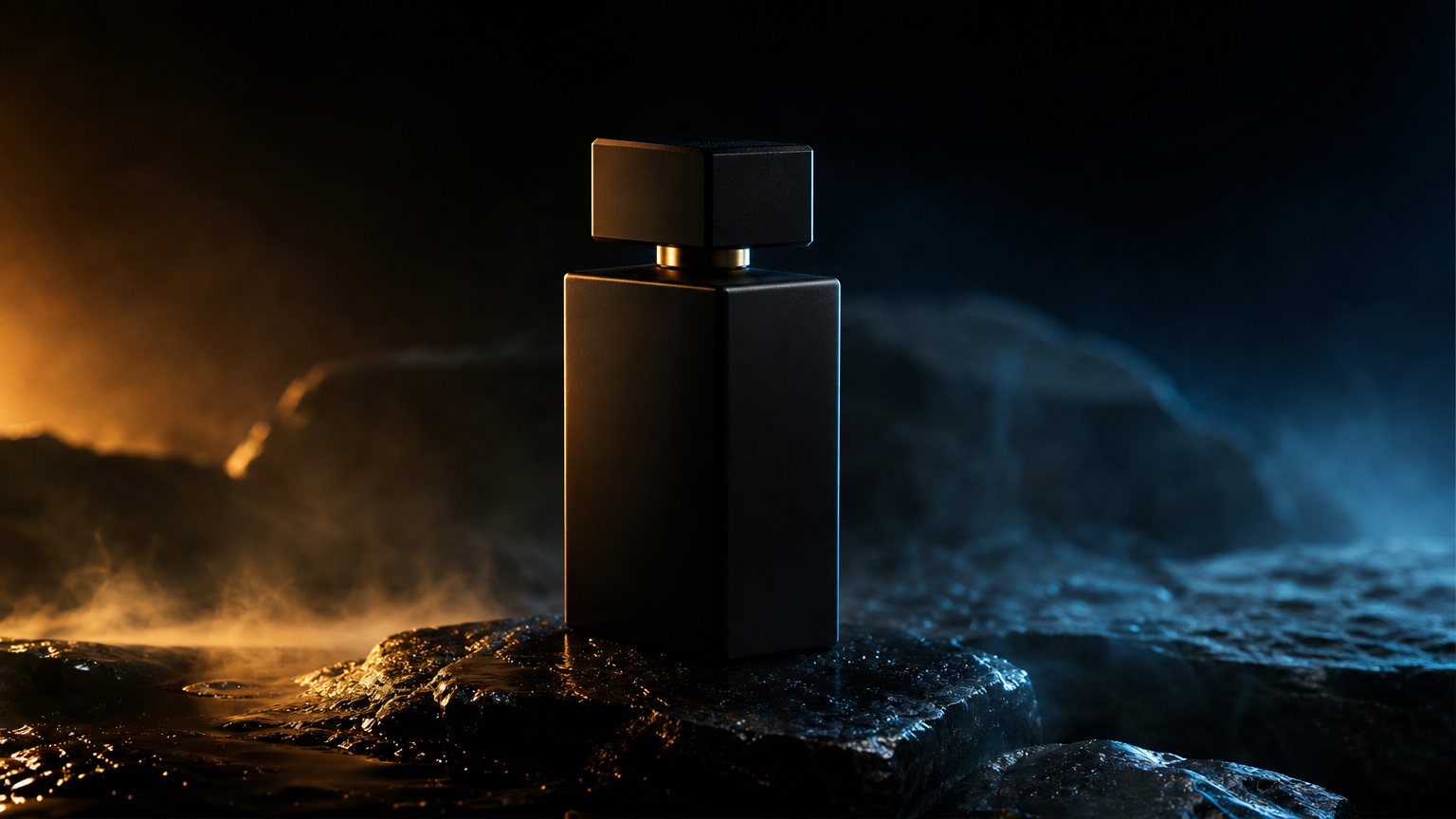
Turn a written creative brief into a final-looking visual with the product, lighting, surface, lens, and composition already directed.
Start with the model selected, then tune resolution, duration, and prompt direction from the same workflow.
Try GPT Image 2Powerful features
Use GPT Image 2 from a blank prompt or upload a source image when the subject, product, pose, or composition should stay anchored.
Use low quality for fast exploration, medium for everyday generation, and high when the image needs a more polished final pass.
Export as PNG, JPEG, or WebP depending on whether the image is going into a website, social post, campaign draft, or asset library.
Generate a still that is already composed well, then use it as a controlled starting point for image-to-video models.
Visual showcase
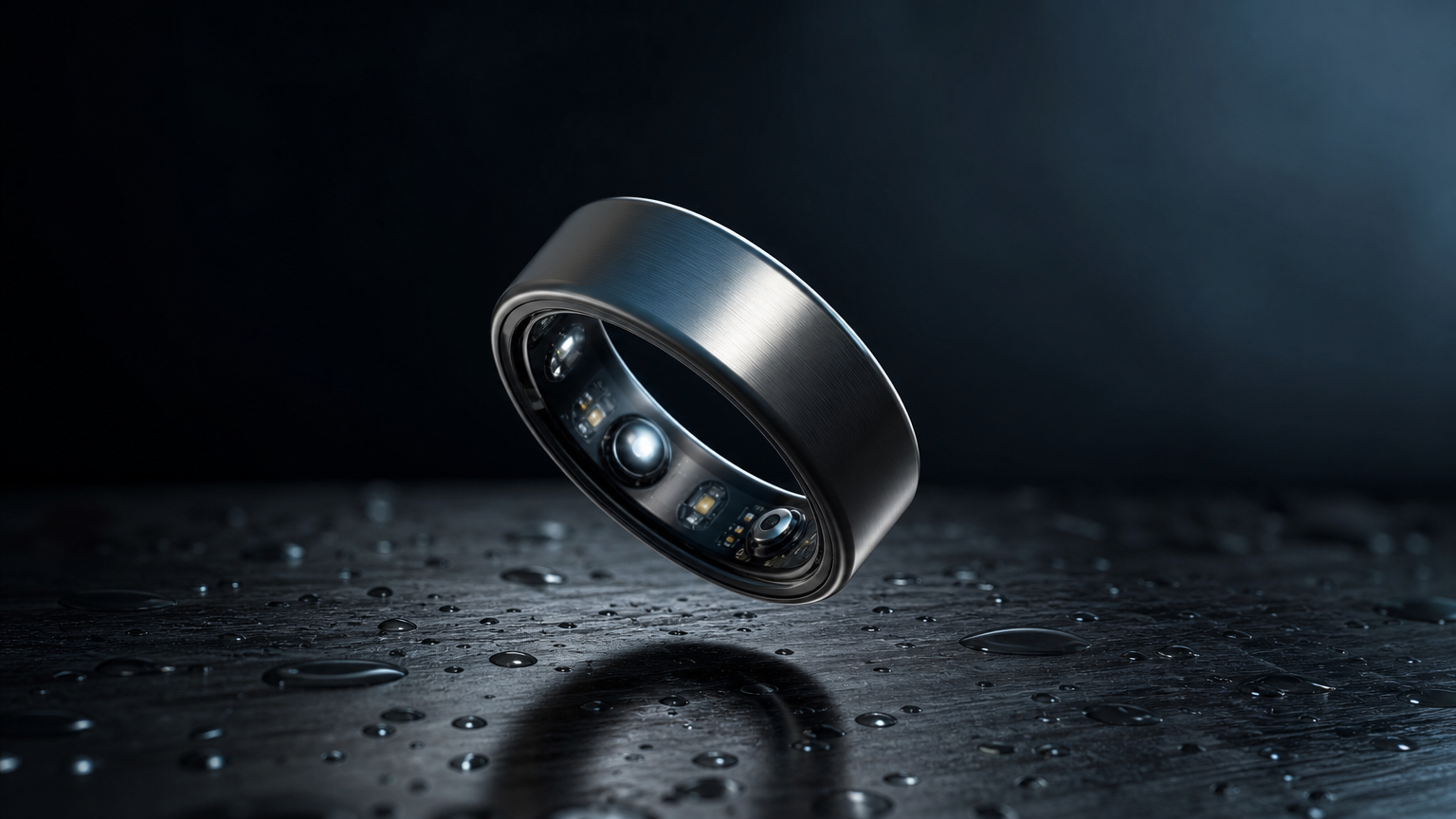
Use GPT Image 2 to create a clean still, then reuse the strongest frame for edits, ads, downloads, or image-to-video workflows.
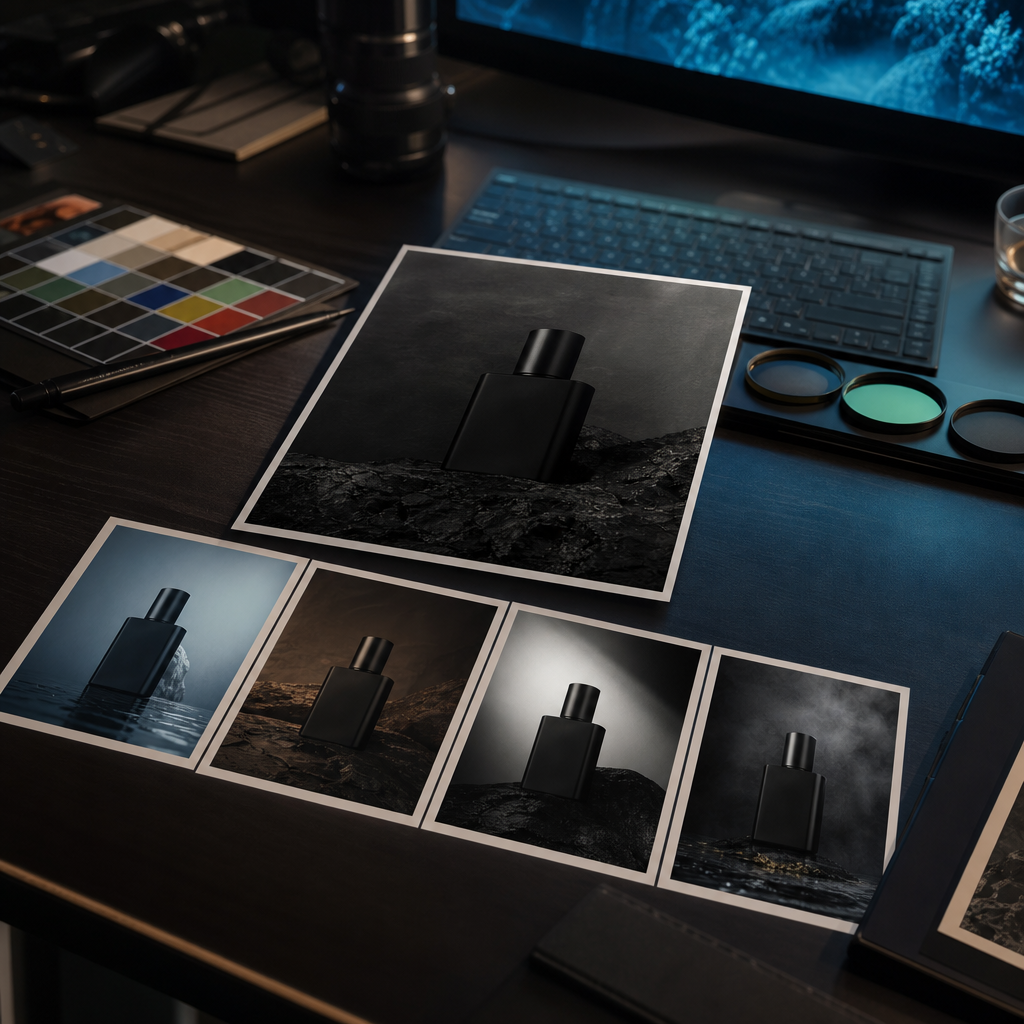
Start with lower quality for rough directions, then switch to high quality when the concept, framing, and prompt are ready.
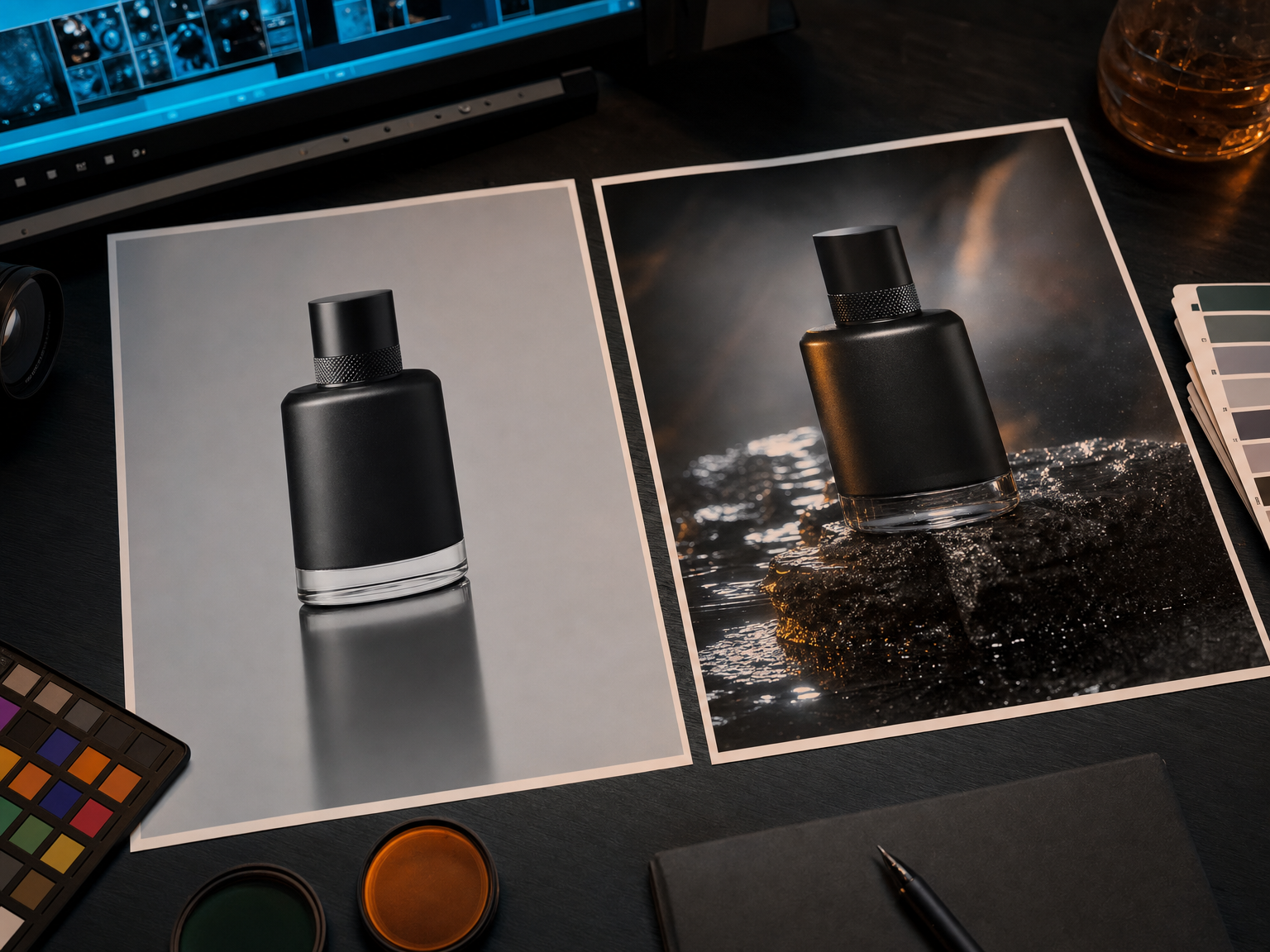
Upload an existing image and describe what should change: background, lighting, styling, product setting, mood, or campaign direction.
How it works
Start with text-to-image for a new visual, or switch to image-to-image when you already have a source frame to preserve.
Describe the subject, composition, lighting, camera/lens feel, material, background, color direction, and intended use.
Use quick passes to find the direction, then run targeted edits or higher-quality generations for the final image.
Use cases
Create premium product shots, seasonal variants, launch visuals, and clean campaign stills before a full shoot or design pass.
Generate scroll-ready compositions for paid ads, social thumbnails, landing-page tests, and creative direction decks.
Keep the important subject from an uploaded image while changing background, lighting, style, surface, or campaign context.
Build a strong still first, then animate it in image-to-video when motion needs a polished visual anchor.
Prompt examples
“A premium product photo of a matte black fragrance bottle on wet obsidian stone, amber rim light, soft mist, macro lens, shallow depth of field, luxury editorial campaign look, clean negative space.”
“A bold vertical ad image for an iced matcha drink, condensation on glass, fresh green color accents, soft studio light, clean background, premium social campaign composition, no readable text.”
“Keep the product shape, label, and angle exactly the same. Replace the background with dark green marble, add warm window light, richer shadows, and a high-end skincare campaign finish.”
FAQ
GPT Image 2 is best for prompt-led image generation, product visuals, campaign stills, thumbnails, concept images, source frames for video, and practical image edits where the creative direction needs to be clear.
Yes. On Vevaro, GPT Image 2 supports an image-to-image workflow. Upload a source image, describe what should change, and keep the result in the same studio session.
Use low quality for quick drafts, medium for normal generation, and high quality when the prompt is locked and the image needs a more polished final pass.
Yes. A strong GPT Image 2 still can be used as a source frame for image-to-video models when you want more control over the first frame, product placement, or visual style.
Yes. The GPT Image 2 model page opens the Vevaro image studio with GPT Image 2 selected, so you can generate from text or move into image editing from the same workspace.
Related models
Generate and edit images with Nano Banana Pro on Vevaro using 1K, 2K, and 4K output options, flexible aspect ratios, and prompt-led direction for product shots, ads, concept art, and visual edits.
Recraft
Use Recraft 4.1 Pro on Vevaro for high-resolution AI image generation with strong composition, brand-ready detail, editorial 35mm looks, product campaign stills, and polished hero visuals.
Alibaba
Generate detailed scenes, graphics, and prompt-controlled visuals with Qwen Image 2 on Vevaro.
Ideogram
Create graphic layouts, text-forward visuals, posters, thumbnails, and creative compositions with Ideogram V3 on Vevaro.
Open the studio with GPT Image 2 selected and start generating with the settings already mapped to the right workflow.