Reference-aware edits
Preserve identity, shape, composition, or product detail while changing the scene around it.
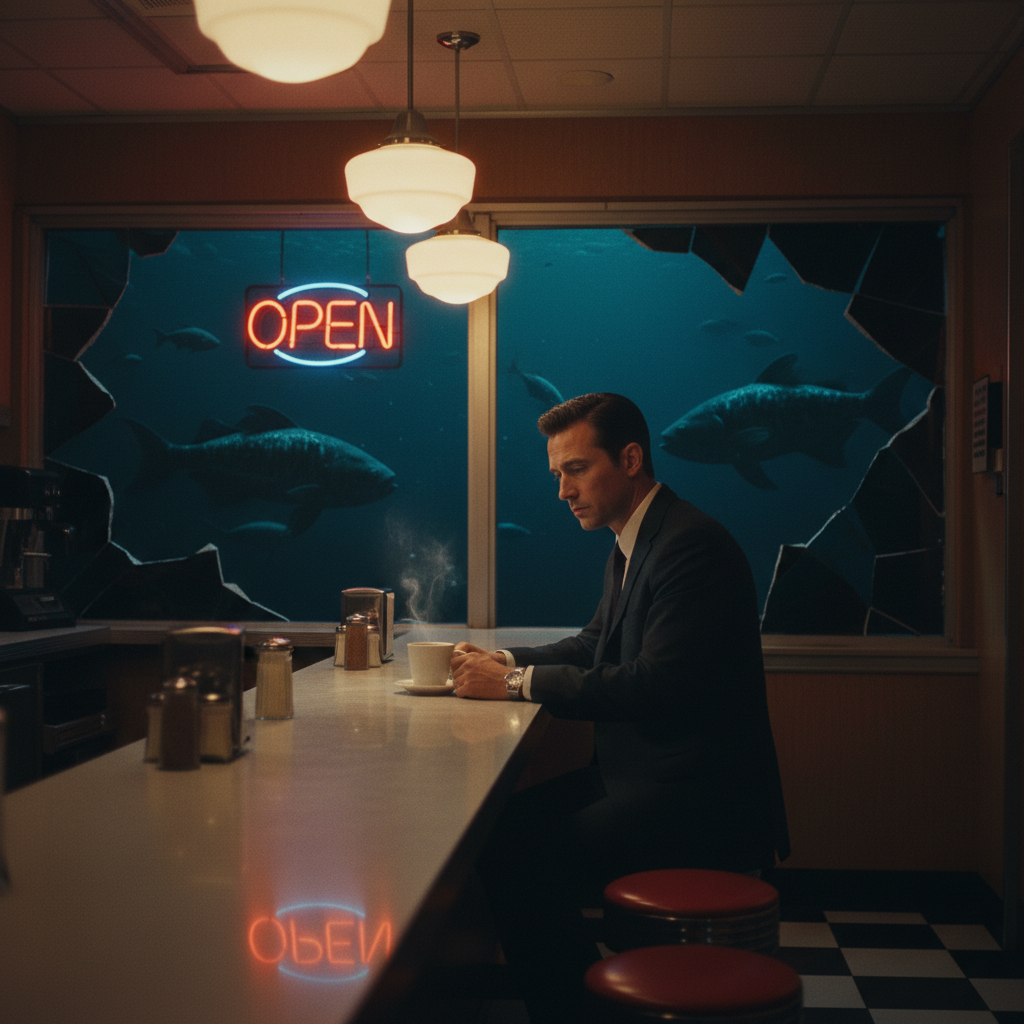
Image to Image
Upload a source frame, preserve the important details, and restyle the scene with a clear edit direction. Rebuild backgrounds, clean product shots, or create premium variations without starting from zero.
Generate a clean first frame, refine the direction, compare outputs, then continue into editing or image-to-video.
Image to Image
Image to image is for moments where the source already has value. Bring in a product shot, character frame, sketch, logo concept, or campaign still, then guide the next version with text.
Preserve identity, shape, composition, or product detail while changing the scene around it.
Move from rough capture to editorial, ecommerce, cinematic, illustrated, or brand-ready looks.
Use the model, ratio, quality, and output controls that fit the image you are trying to finish.
Source to result
Start from a source frame, preserve what matters, and guide the background, lighting, styling, and finish with a short edit direction.
Keep the subject structure and silhouette. Replace the background with a warm editorial studio, add soft directional light, richer shadows, and a premium campaign finish.
Source-aware output for campaigns and variations
Models
OpenAI
Strong reference following and practical edits
Premium transformations and sharp detail
Black Forest Labs
Stylized creative edits and strong aesthetics
ByteDance
Fast variations and creative restyling
Alibaba
Clean edits, structure, and visual consistency
xAI
Expressive image variation and fast exploration
Workflow
Instead of rebuilding the prompt from zero, start with the frame you already like. Vevaro keeps upload, model choice, edit direction, and results in the same flow.
Bring in a product shot, concept, character frame, sketch, or campaign image.
Tell the model what must stay fixed and what should be transformed.
Keep variations, download the final, or send the best image into video.
Prompt examples
Keep the bottle and label untouched. Replace the table with dark green marble, add golden side light, premium skincare campaign.
Keep the room layout. Change the style to warm Japandi, linen textures, soft oak, quiet afternoon light, editorial real estate look.
Keep the person identity and pose. Change wardrobe to a black tailored coat, add neutral studio background and soft cinematic light.
FAQ
It is best when you already have a source image and want controlled changes: new backgrounds, product staging, restyling, cleaner composition, or creative variations.
Yes. The prompt should name what must stay unchanged, such as packaging, logo placement, silhouette, color, or composition.
No. Text to image is best for starting from a blank prompt. Image to image is best when a source frame should guide the result.
Start from a prompt or bring an image with you. The page gets visitors in; the studio carries the production work.
Edit an image