 Source
OpenAI
Sora 2
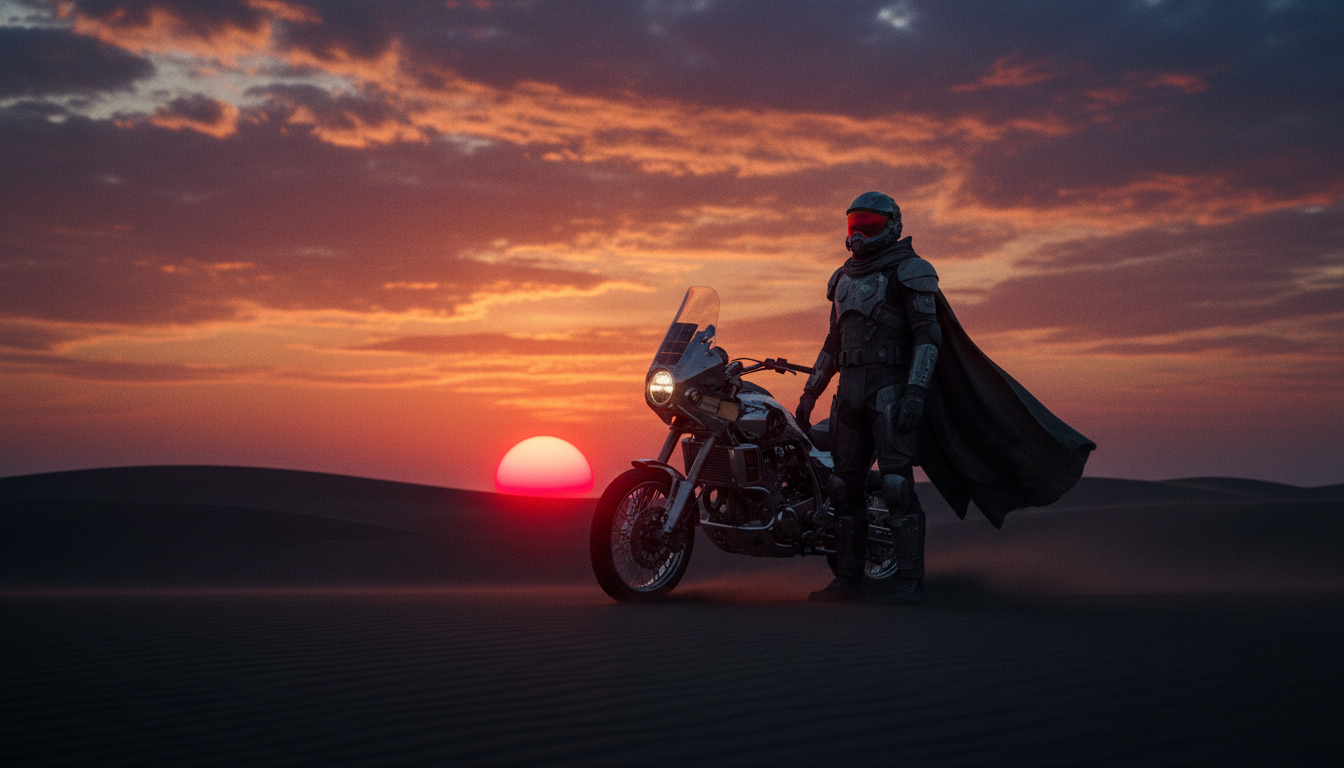
Animate still frames with clean subject motion, cinematic pacing, and natural transitions.
Best for
Portraits, character frames, editorial scenes
Try Sora 2Upload a still frame and shape it into a polished video clip with image-to-video AI. Animate product shots, portraits, concept art, campaign visuals, and storyboards while keeping the original direction intact.
Motion direction
Push in, natural wind, light movement, stable identity.
Still frame to moving scene
Keep the composition, direct the shot, compare models.
Image to Video models
Different image-to-video models handle motion, identity, realism, texture, camera language, and pacing in different ways. Vevaro keeps them in one studio so you can test the right model without rebuilding the workflow.
SourceOpenAI
Animate still frames with clean subject motion, cinematic pacing, and natural transitions.
Best for
Portraits, character frames, editorial scenes
Try Sora 2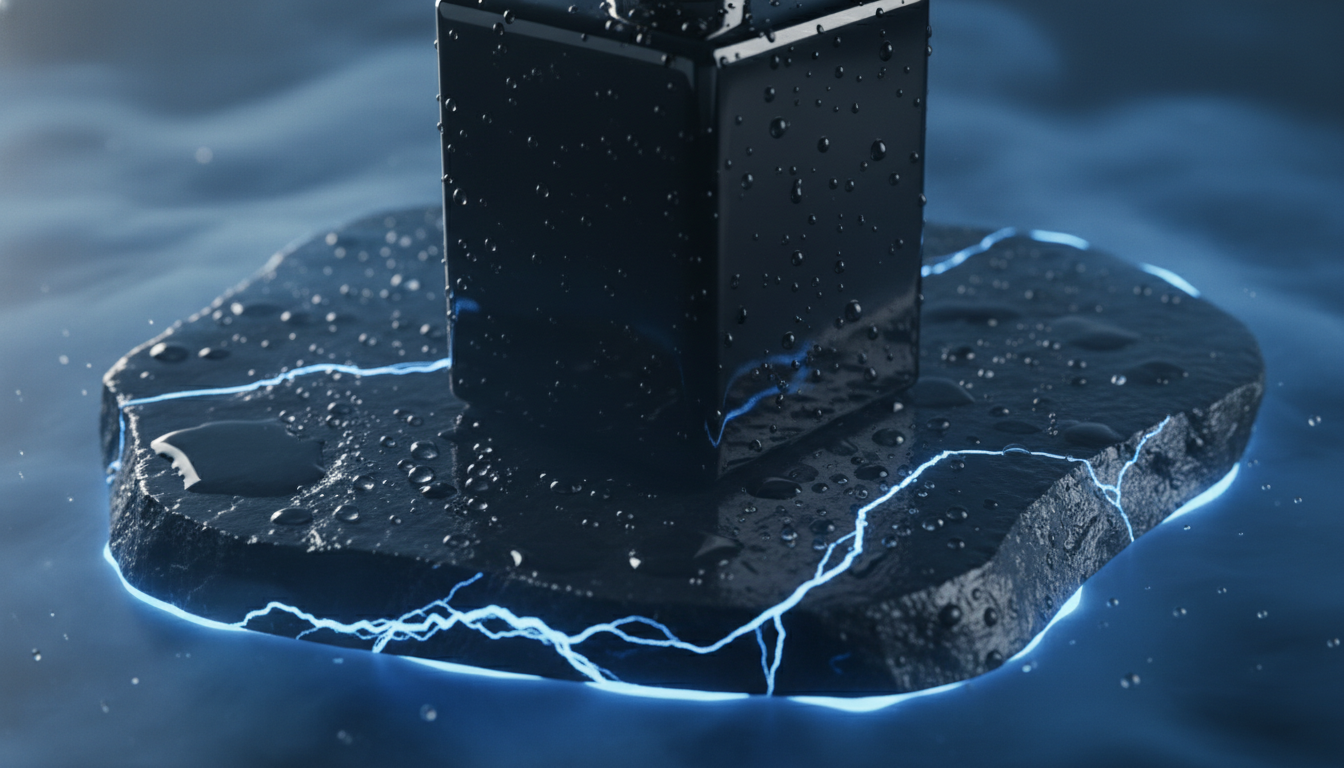 Source
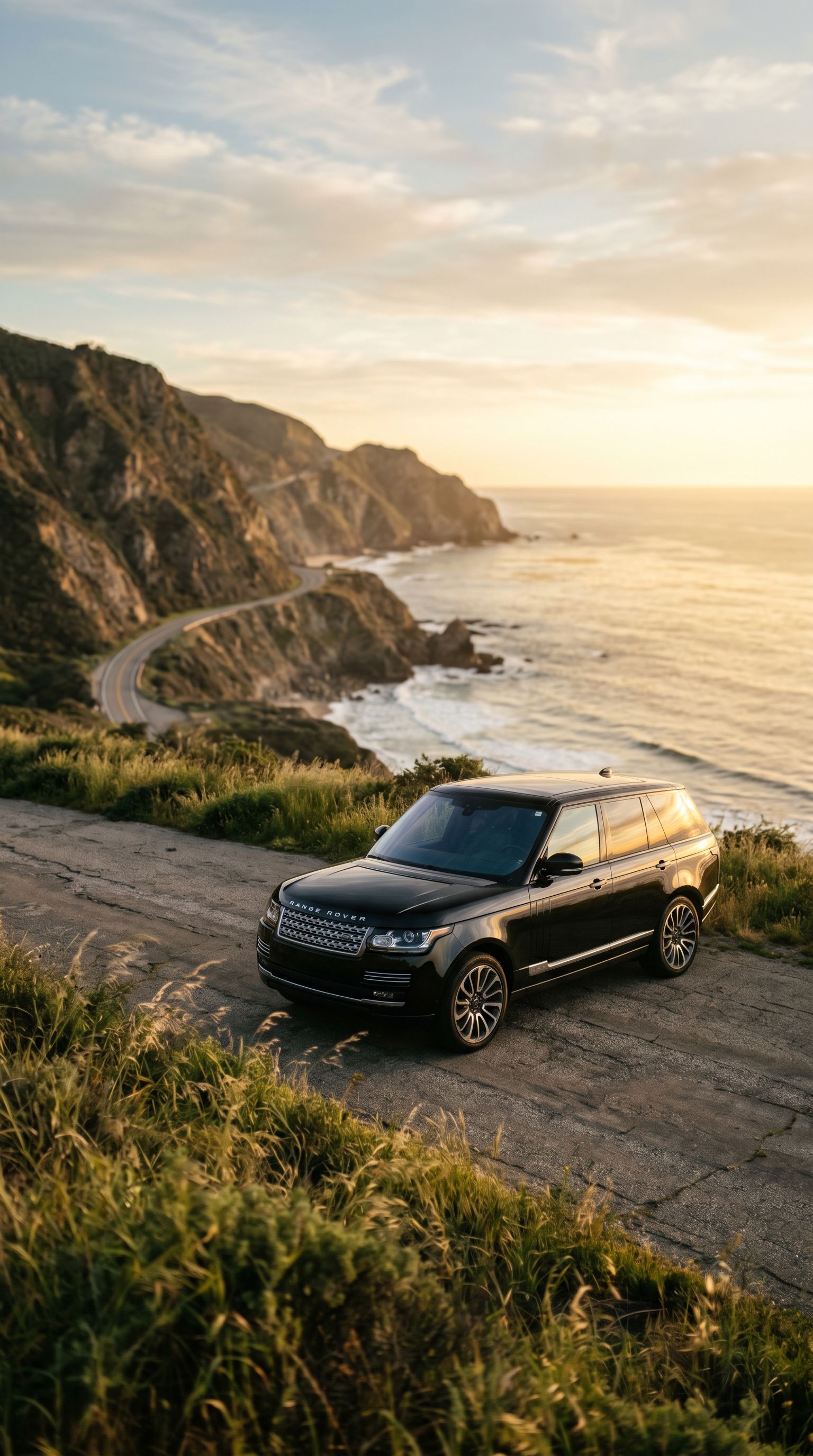
Bring product shots and detailed visuals to life with polished camera movement and lighting.
Best for
Commercial visuals, product motion, premium clips
Try Veo 3.1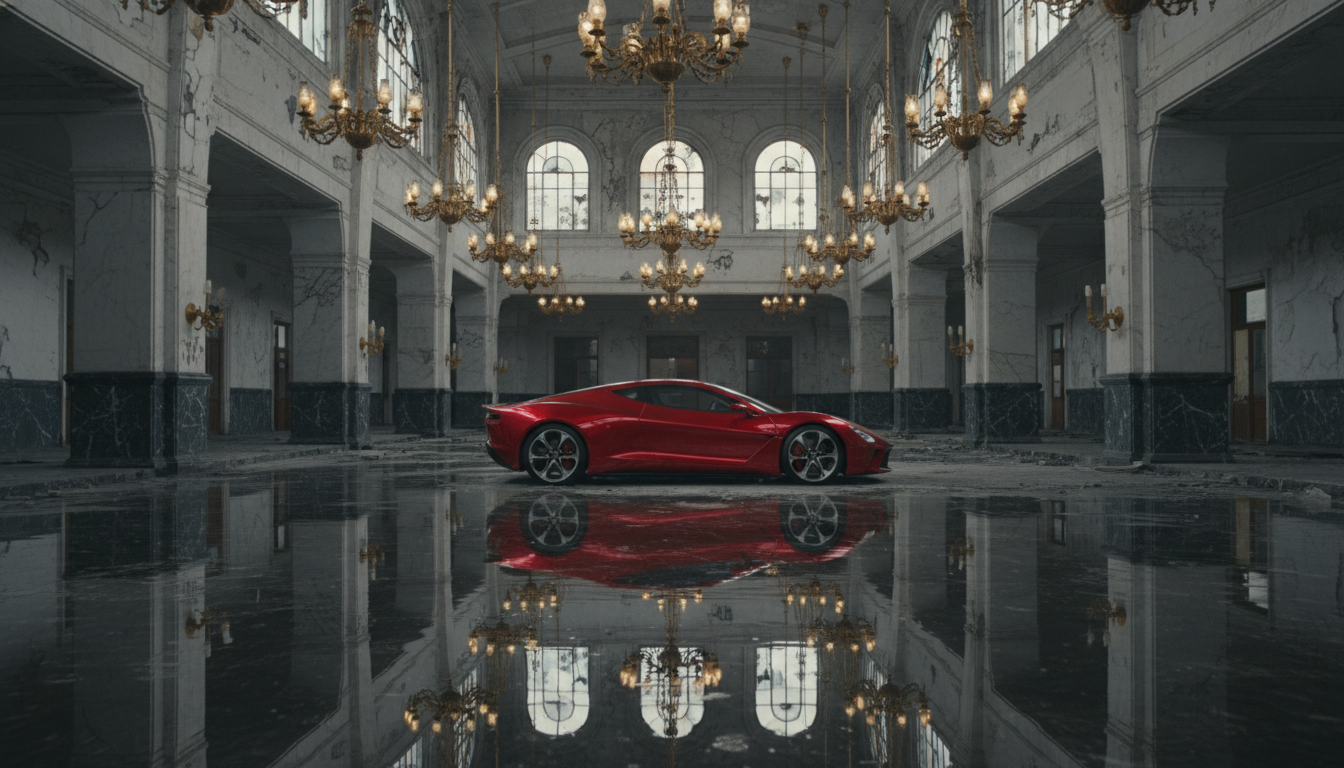 Source
ByteDance
Flexible first-frame and end-frame workflows for longer shots, action, and social formats.
Best for
Story beats, stylized motion, start and end frames
Try Seedance 2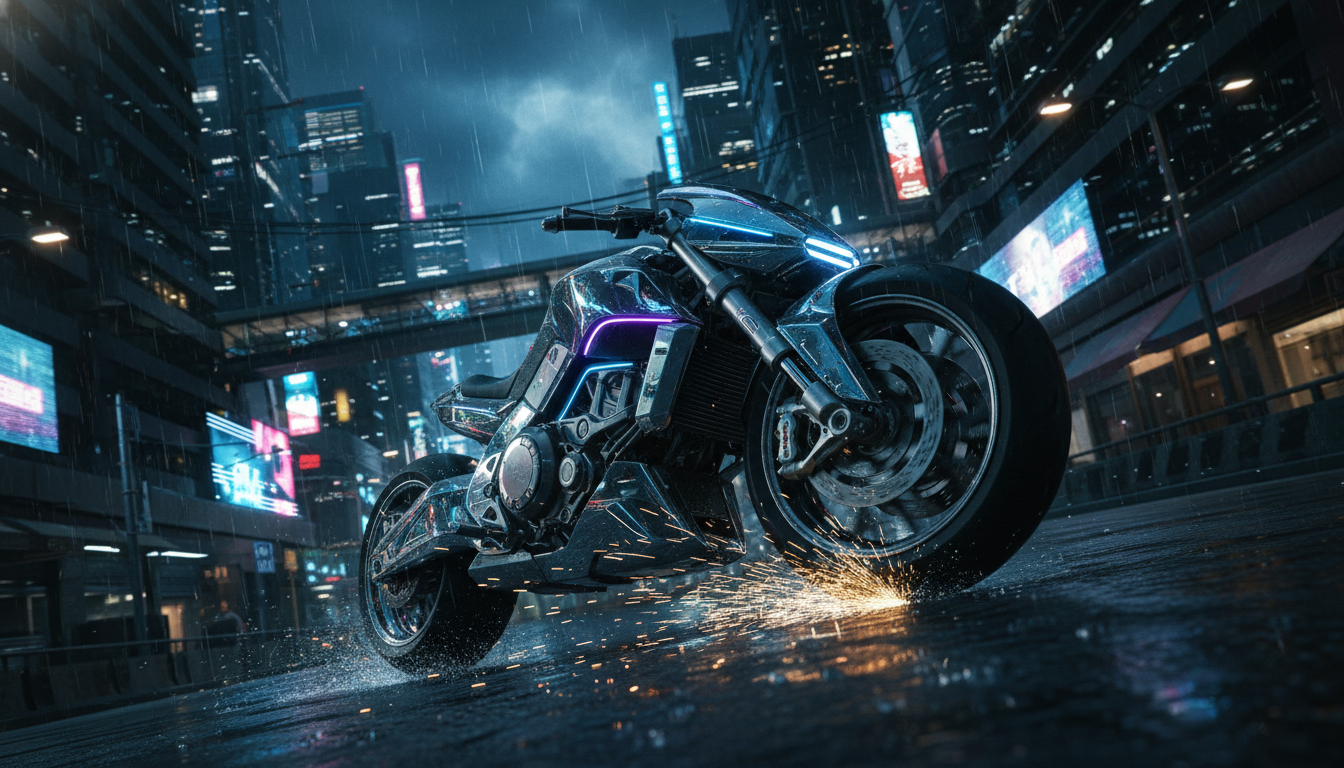 Source
Kuaishou
Strong motion energy, expressive camera paths, and controllable standard or pro modes.
Best for
Dynamic subjects, fashion, sports, stylized ads
Try Kling 3.0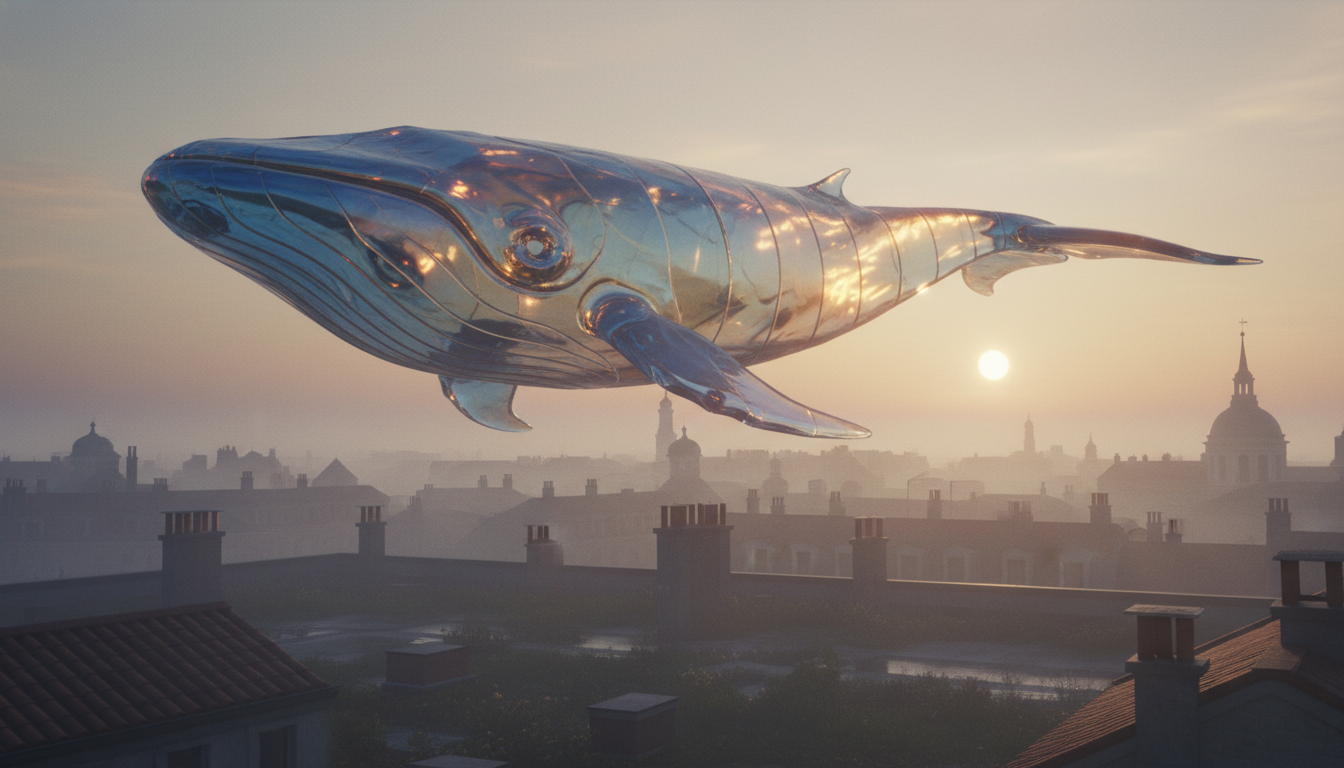 Source
Alibaba
Efficient image animation for fast creative testing across landscape, vertical, and square clips.
Best for
Concept art, tests, fast iteration
Try Wan 2.7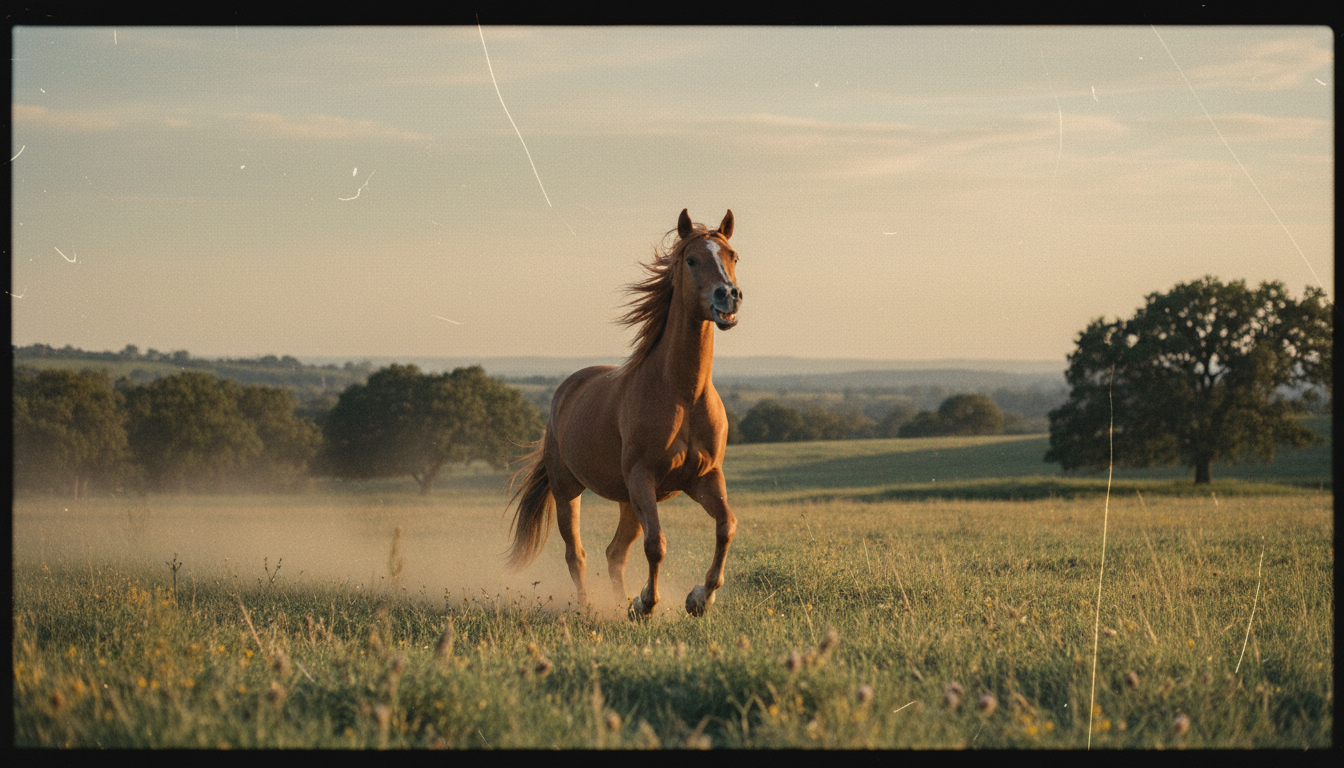 Source
Alibaba
1080p image-to-video generation with native audio and smooth prompt-guided motion.
Best for
Audio-ready clips, product motion, creator visuals
Try Happy HorseWorkflow
Image-to-video works best when the prompt acts like a director. Keep the visual anchor, then guide movement, timing, camera behavior, and atmosphere.
Start animatingStart with a product shot, portrait, concept frame, storyboard panel, or generated image.
Describe camera movement, subject action, atmosphere, speed, and what should stay consistent.
Try different models, preview the clip, adjust the motion prompt, then download the best version.
Control
When a model supports first and last frames, you can guide the beginning and destination of the shot. That gives product reveals, character beats, and story moments a clearer direction than a single image alone.
Keep product shape and packaging consistent
Guide a character from one pose to another
Plan a reveal, transition, or camera move
Reduce guesswork in short narrative shots
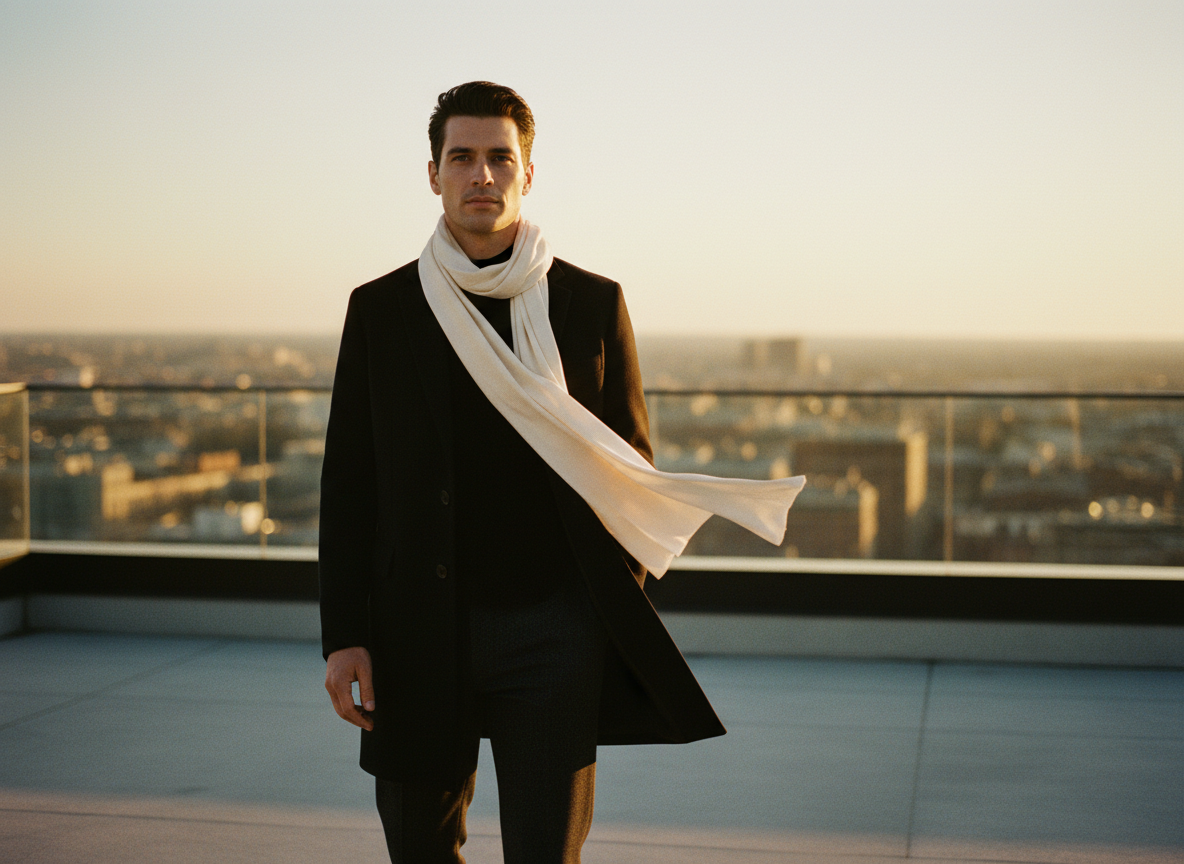
Start frame
End frame
Generated result
Motion guided by the first and last frame.
Example direction
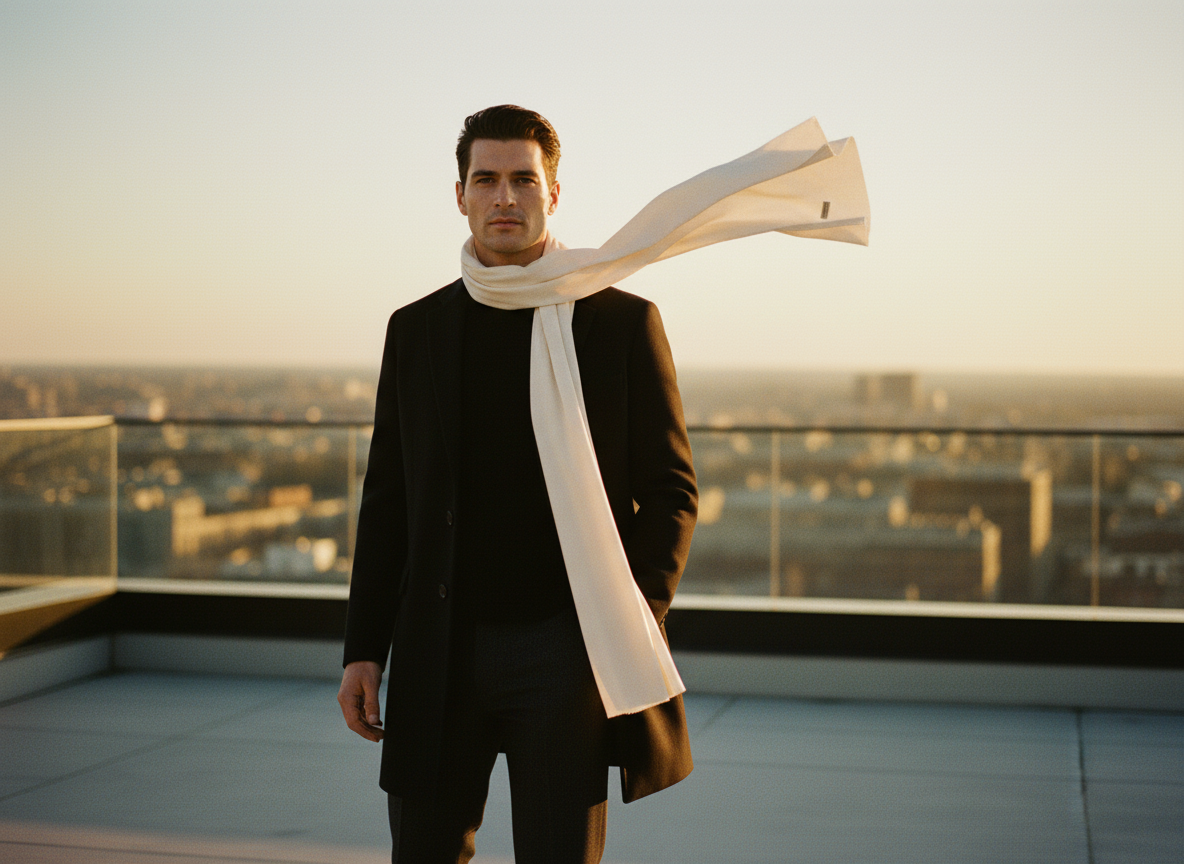
Slow dolly forward, the model turns toward camera, silk fabric lifts in the wind, warm sunset light rolls across the scene, final pose matches the reference.
Use cases
Image-to-video is especially useful when the visual direction already exists. Use one approved frame, then turn it into motion for testing, pitching, publishing, or campaign variation.
Add controlled camera moves, reflections, fabric motion, and background atmosphere to existing product images.
Create subtle head turns, wind, eye direction, cinematic push-ins, and believable environmental motion.
Turn keyframes into motion studies before committing to production, animation, or editing time.
Build multiple short video directions from a single image for paid creative testing and organic posts.
Animate light changes, camera glides, particles, weather, and people moving through a space.
Create polished motion backgrounds, launch teasers, and visual loops while keeping the original art direction.
Prompting
The image already gives the model subject, framing, colors, and style. Your prompt should clarify movement, camera behavior, environment, and constraints.
Prompt 1
Slow push-in, soft window light, fabric moving in a light breeze, subject holds eye contact, cinematic 35mm lens.
Prompt 2
Luxury product turntable, glossy reflections, shallow depth of field, controlled studio lighting, clean background motion.
Prompt 3
Camera glides from left to right, sunset light shifts across the building facade, people move naturally in the distance.
Prompt 4
First frame evolves into the final pose, hair and jacket move with wind, subtle handheld camera energy, natural motion blur.
Source images
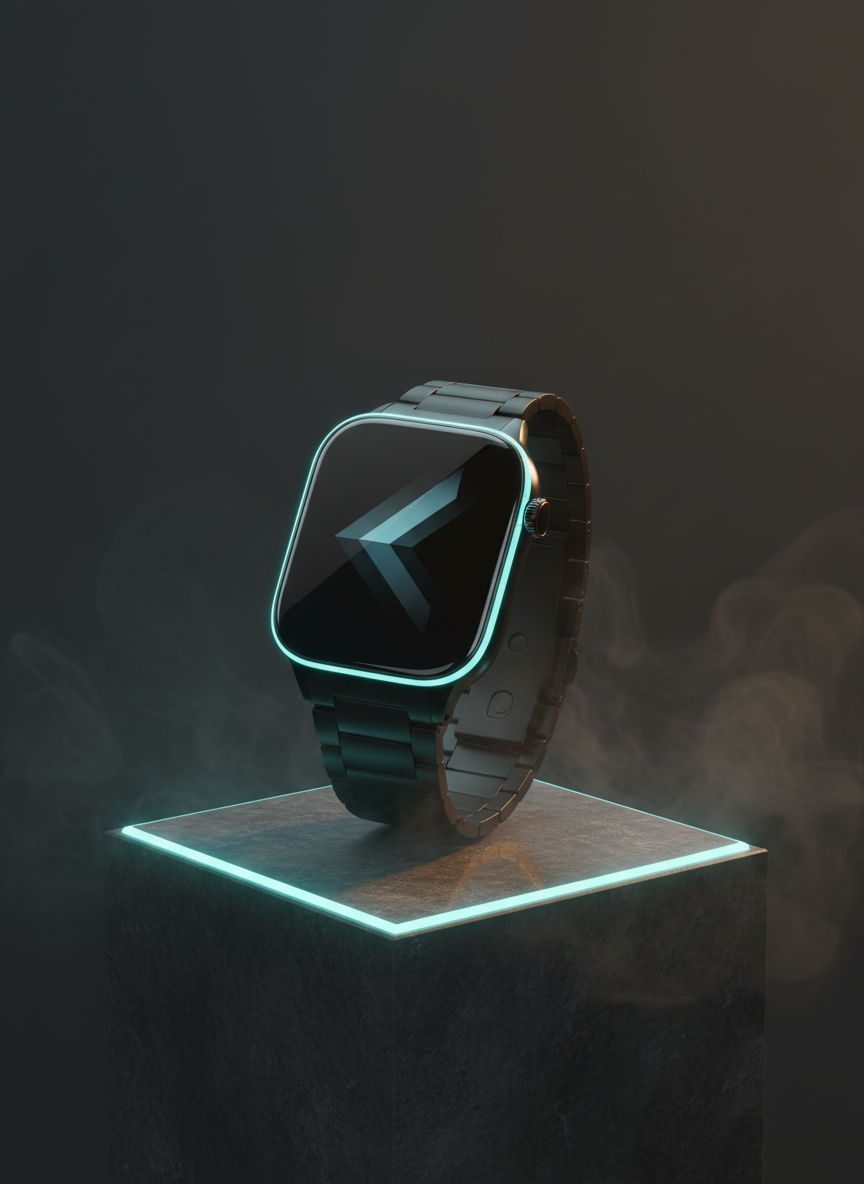
Create a clean source image in Vevaro, then animate it in the same studio. This is useful for product concepts, campaign art, characters, thumbnails, and storyboards that need a polished still before motion.
Generate the still
Direct the motion
FAQ
An image to video AI generator turns a still image into a short video clip. You upload an image, describe the motion, choose a model, and generate an animated result that keeps the source visual as the creative foundation.
Vevaro supports image-to-video workflows across models such as Sora 2, Sora 2 Pro, Veo 3.1, Seedance 2, Kling, Wan, Happy Horse, Runway, Grok Imagine, and Vevaro models.
Yes. Some models support first-frame and last-frame control, which helps guide how the shot begins and where the motion should land.
Use a clear image with a strong subject, enough detail, and a composition that already looks close to the video you want. Blurry, cropped, or low-resolution images usually give the model less useful information.
Focus on motion. Describe camera direction, subject movement, speed, lighting changes, environmental details, and what should remain stable. Avoid rewriting the whole image unless you want the model to reinterpret it.
Generated outputs can be used according to Vevaro terms and the plan you are on. For client work, ads, and publishing, review the commercial usage terms before releasing the final asset.
Open the studio, upload a frame, choose a model, and turn the still into a polished video clip.