Prompt-led direction
Describe product, lighting, lens, mood, material, format, and composition in plain language.
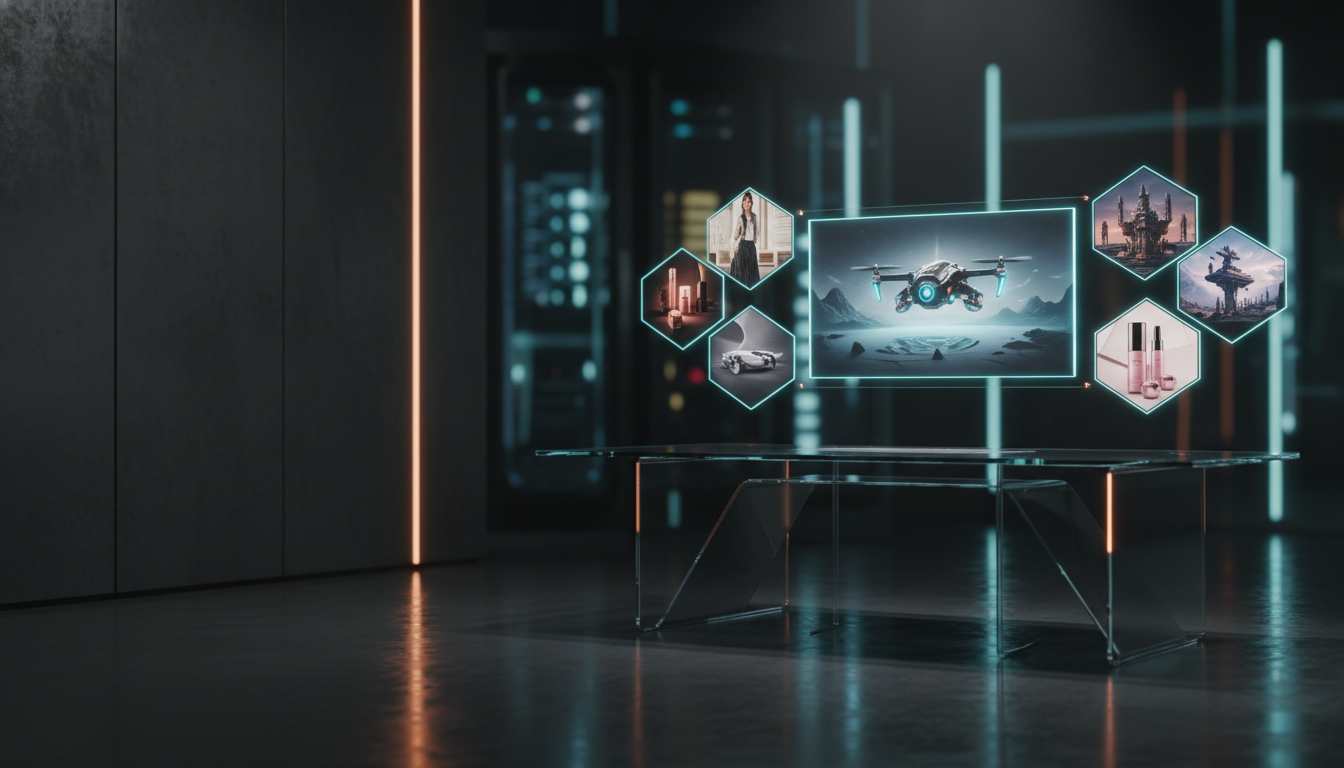
Text to Image
Create polished product shots, campaign visuals, thumbnails, concept art, and source frames from a single prompt. Choose the model, shape the style, then continue editing or generating inside Vevaro.
Generate a clean first frame, refine the direction, compare outputs, then continue into editing or image-to-video.
Text to Image
Use one workspace for fast drafts and final-looking visuals. Start with a prompt, pick the model that fits the job, and move the best frame straight into editing, video, or download.
Describe product, lighting, lens, mood, material, format, and composition in plain language.
Move between Nano Banana, GPT Image, Recraft, Seedream, Qwen, Ideogram, and more.
Turn a still into an image edit, a campaign asset, or a source frame for video.
Prompt to result
Turn a precise creative direction into a polished still with the lighting, materials, lens, and composition already shaped for production.
A cinematic product photo of a premium smart ring on dark brushed steel, soft cyan rim light, subtle reflections, macro lens, luxury technology campaign, clean negative space.
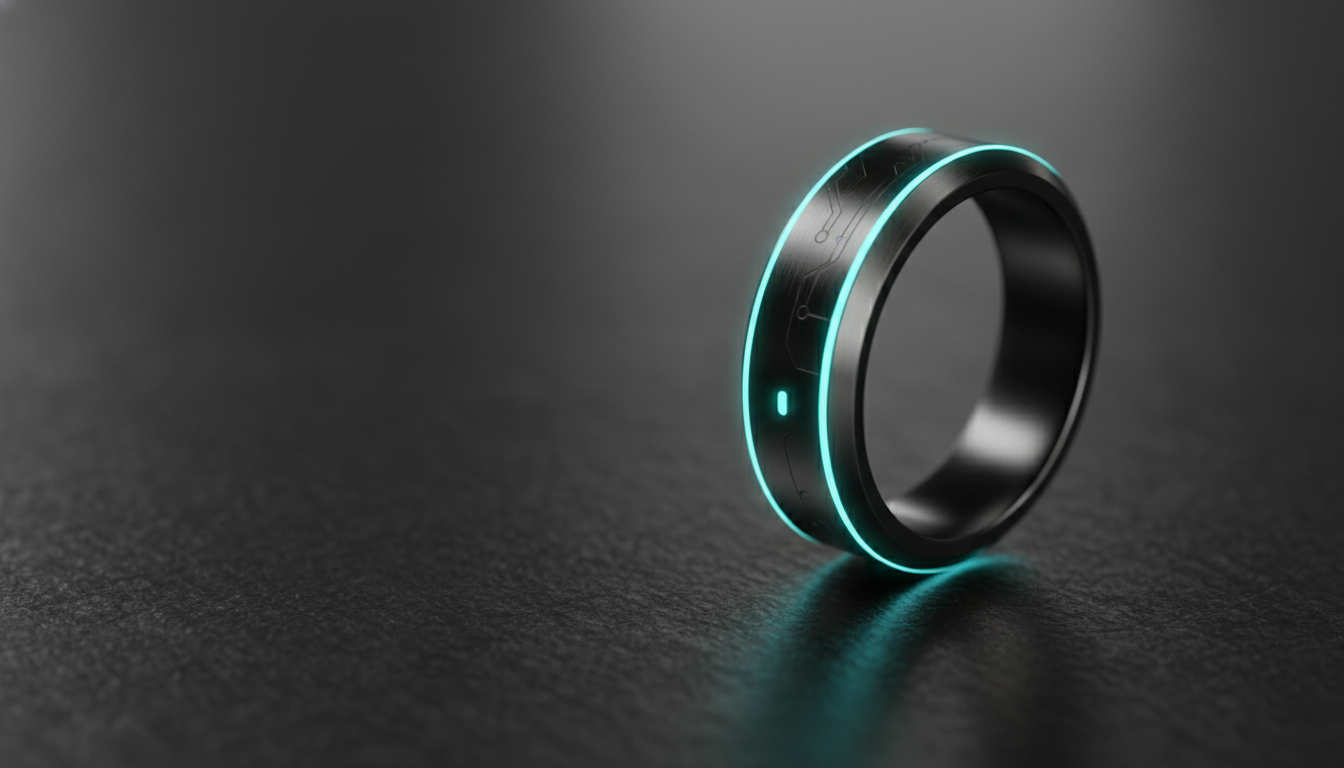
Ready for editing, download, or image-to-video
Models
Sharp commercial imagery and flexible ratios
OpenAI
Clean prompt following and practical edits
Recraft
Design-led raster work and hero visuals
ByteDance
Fast creative exploration and stylized output
Alibaba
Detailed scenes, graphics, and prompt control
Ideogram
Text-heavy creative and graphic layouts
Workflow
The page brings people in through search. The studio handles the real work: generation history, settings, uploads, refinements, and downloads.
Describe the subject, surface, lighting, lens, color, and final use.
Pick speed, quality, design control, or prompt fidelity based on the shot.
Save the best frame, edit it, animate it, or make another variation.
Prompt examples
A luxury wristwatch on brushed titanium, soft studio haze, crisp reflections, black and champagne palette, premium magazine campaign.
A sculptural chair in a concrete gallery, morning side light, rich shadows, 50mm lens, quiet architectural editorial style.
A bold matcha drink poster with condensation, glass texture, fresh green accents, clean type-safe composition, vertical format.
FAQ
This is the public landing page. The actual generation happens in the Vevaro studio, where models, settings, uploads, history, and downloads live.
Yes. Vevaro keeps multiple image models in one place so you can switch between speed, realism, design control, and editing strength.
Yes. A generated image can become a source frame for image-to-video models when you want controlled motion from a polished still.
Start from a prompt or bring an image with you. The page gets visitors in; the studio carries the production work.
Create an image